Today tip is very useful particularly for home users who want to protect their system default settings against unwanted changes that other users can make. For example changes in system desktop appearance, themes, and screen saver as well as other display settings. Using registry editor, you can disable the right click functionality on desktop to access the "Display Properties" dialog box and this will also prevent users to access windows explorer. Follow the given steps to disable the right click functionality on desktop: To use this feature, you will need to be logged into your computer with administrative rights. Click Start button and type regedit in Run option then press Enter for next. Here locate the location to: HKEY_CURRENT_USER\Software\Microsoft\Windows\CurrentVersion\Policies\Explorer Here in right side panel, right click to create a new DWORD value with the name NoViewContextMenu (it is case sensitive), then assign number 1 in value data box. Now close the registry editor and restart your computer after any changes to go into effect.


In windows XP, you can create a great fun for others by using this trick. You can display your name or any other favorite word in windows taskbar just beside the digital time area and you can surprise your friends to show them your name in windows taskbar. If you have some knowledge to edit the windows control panel settings then you can do it very easily and next time you can reverse these changes same as you done. Follow the given steps to display the name in windows task bar: To use this feature, you will need to be logged into your computer with administrative rights. First click on windows Start button> Setting then click on Control Panel option. Here double click on "Regional and Language Options" to edit the Regional default settings. Now click on Customize button under the "Standard and formats" area, here a new dialog box title will open with "Customize Regional Options". Select "Time" tab on the "Customize Regional Options" dialog box. Now go to "AM symbol" & "PM symbol" and type the name that you want to display in windows task bar and click on Apply button to affect these settings. Now click on Ok button to end the process and enjoy you name in windows taskbar. 


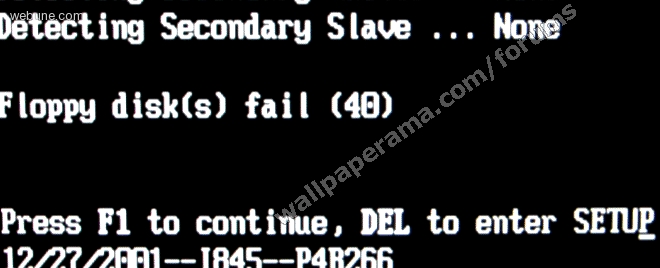
How many times have you rebooted PC and see the message
Press F1 To Continue
Well, next time this happens to you, disable it? well, i will show you:
first get into the BIOS, in this example guide, i will be using an intel board i use for a customer's web site.
Step 1. So, this is the error message you will see
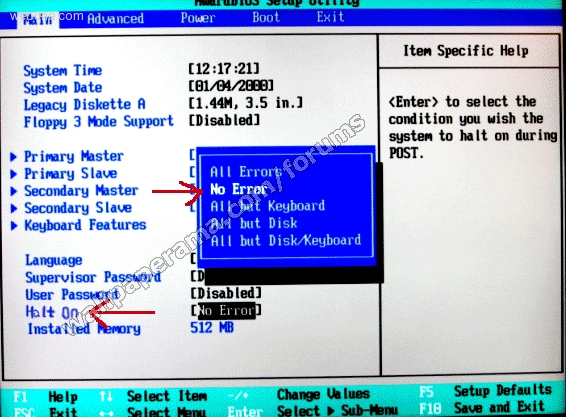
Step 2. To go to the BIOS configuration, in my case, i am going to press "Delete" button. One i am in the BIOS, I am going to look for the "HALT ON" Option. Select it and choose the "No Errors" Options.
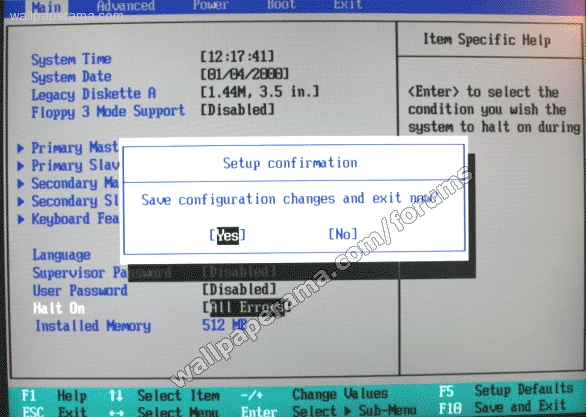
Step 3. Save your changes and reboot
Done